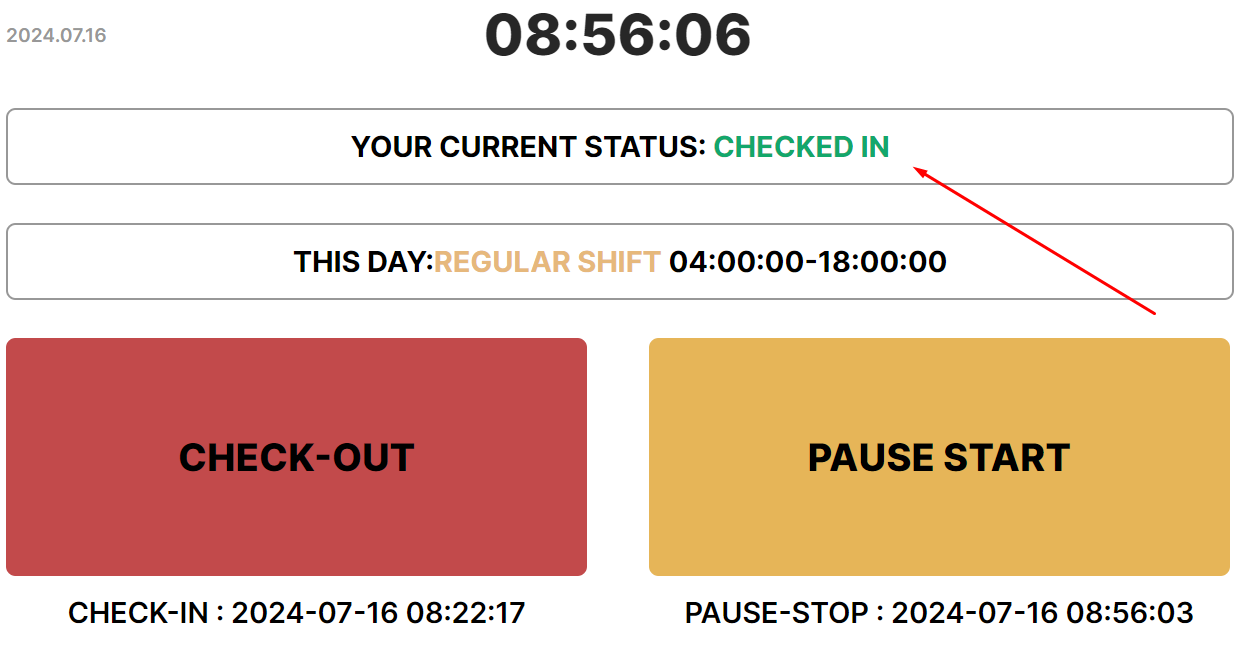
Performing check-in / check-out
- Marking the beginning of the work day
- Marking the end of the work day
- Marking the beginning of the break during work time
- Marking the end of break during work time
Marking the beginning of the work day
Perform check-in to mark the beginning of the working day
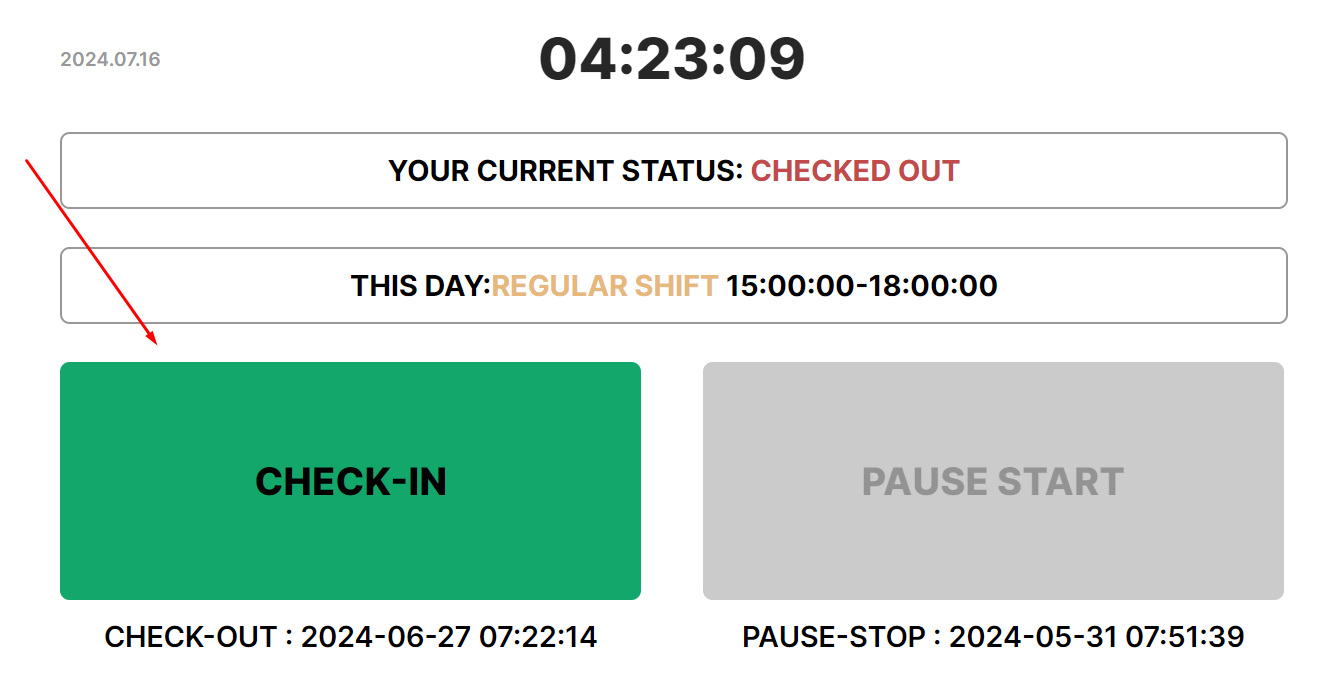
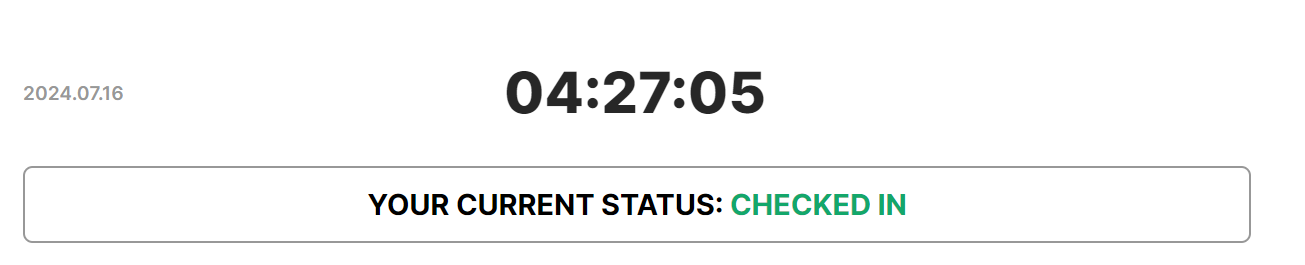
- The status will change to “Checked in”.
- If the system records being late (checking in after the start of the working day according to the schedule specified in the profile), it will ask for the reason for the delay — a comment. Enter a comment in the input field and press "Ok". If You won't fill Commentary input and press “Cancel”, Check-in won't be recorded to the system.
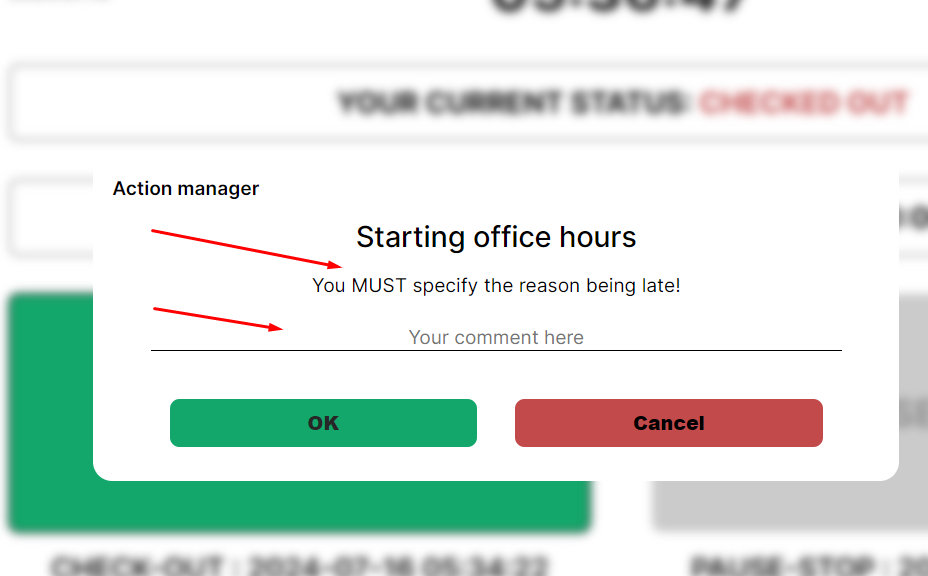
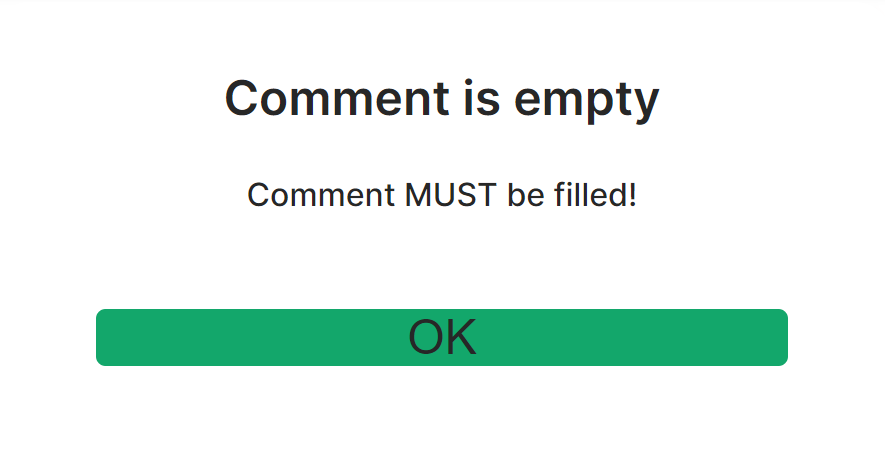
- If you click "Ok" when the comment is not entered (while you are late), the system will show a notification to fill in the comment.
- In the comment field, you should briefly enter a specific and truthful reason for the lateness, and this information will be submitted to the manager.
Marking the end of the work day
Perform check-out to mark the end of the working day
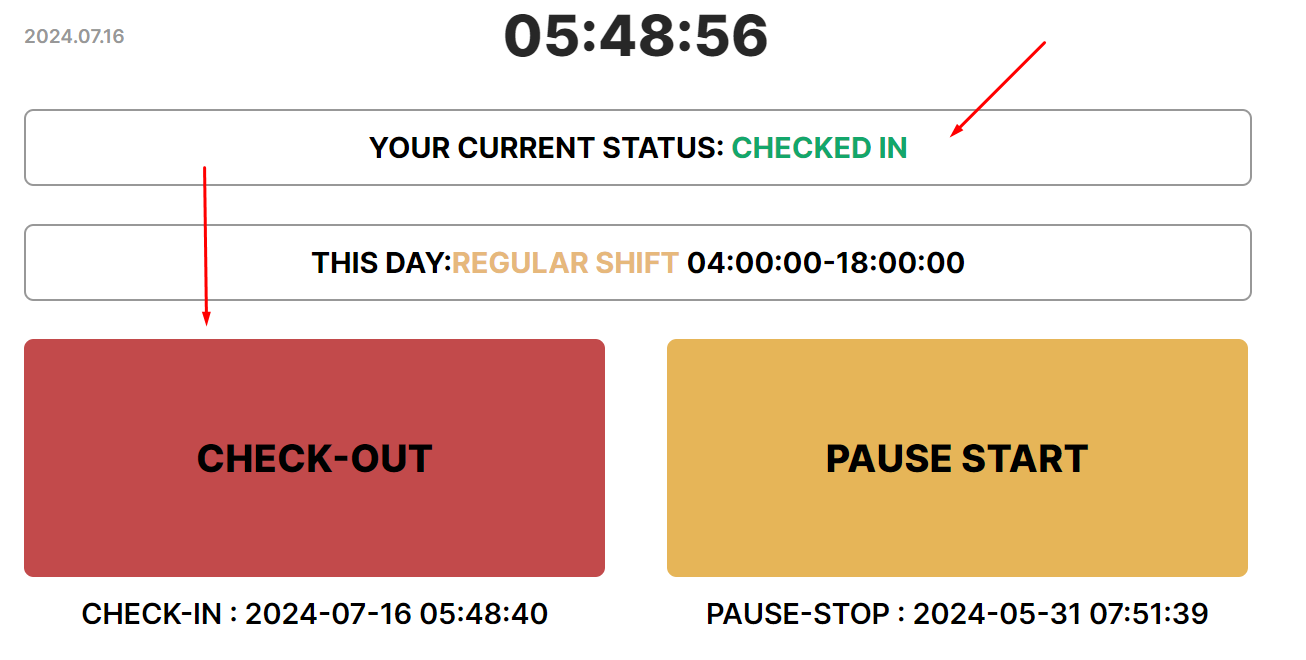
- The status will change to “Checked out”.

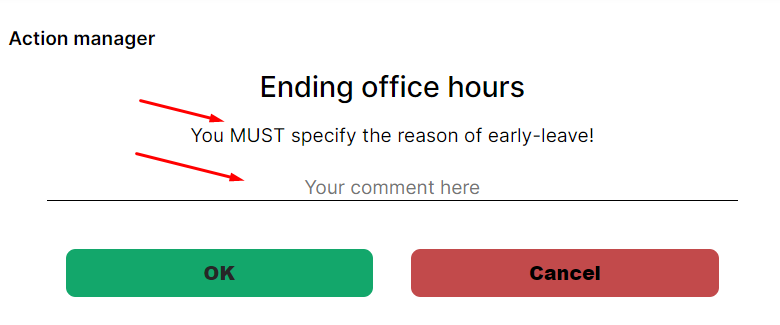
- If check-out is performed before the end of the working day specified in the schedule, the system will record early leave and request a comment. You need to enter a comment and press “Оk”.
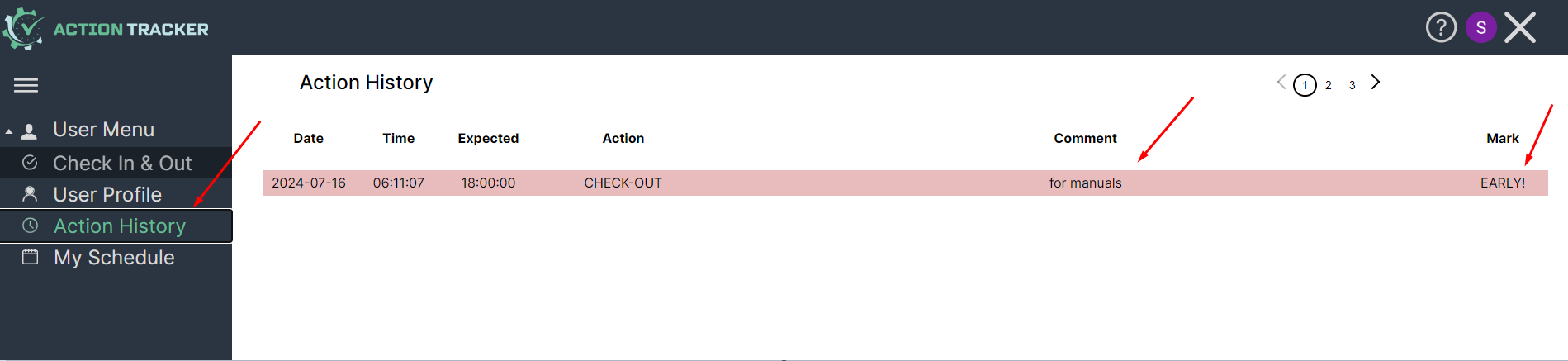
- The status will change to “Checked out”, and an early leave mark will be added to Action History.
- If you do not enter a comment, the system will show a notification of its necessity.
- If you click “Cancel”, check-out will not be executed.
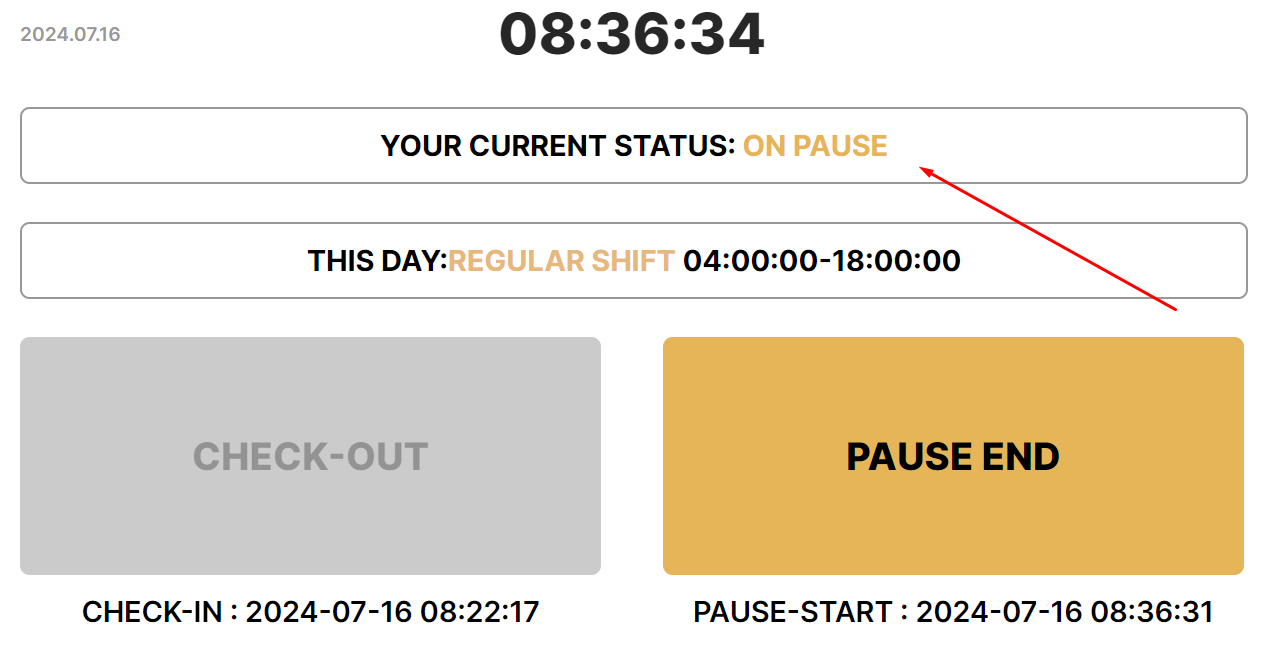
- If you are “On pause” or have not performed a check in, the “check out” button will not be available.
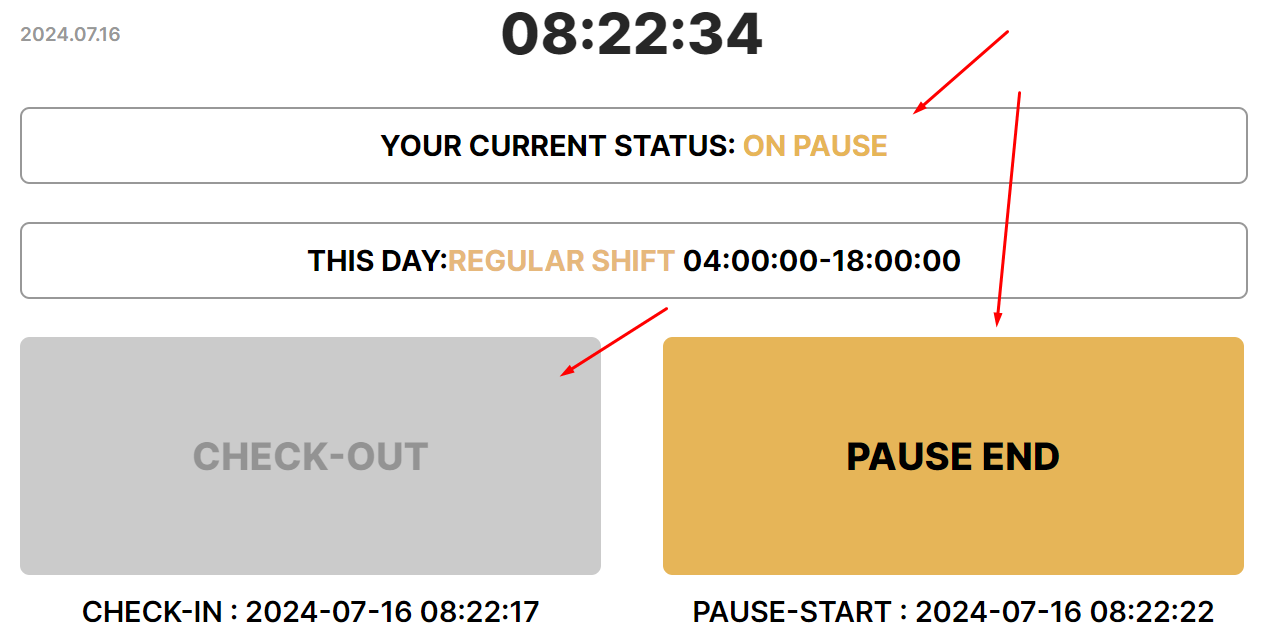
- You need to un-pause
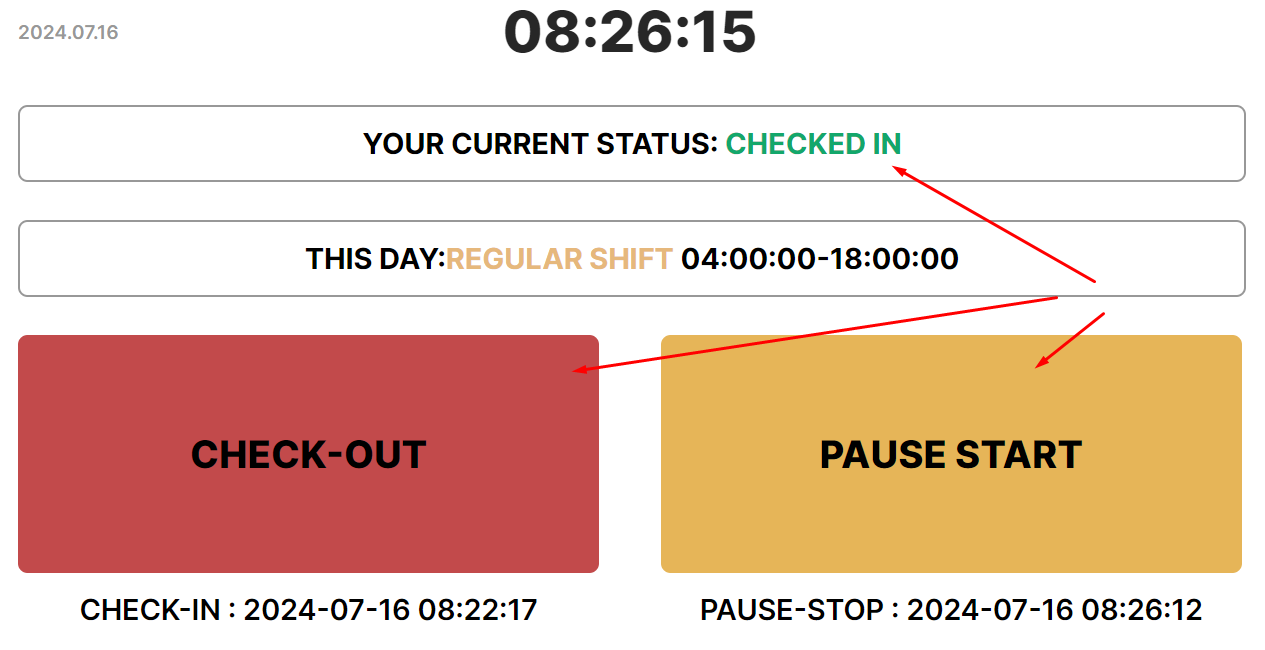
Marking the beginning of the break during work time
Press “Pause start” to mark a lunch break or a pause in work
- You can only start a break after performing Check-in when the “Pause start” button becomes active.
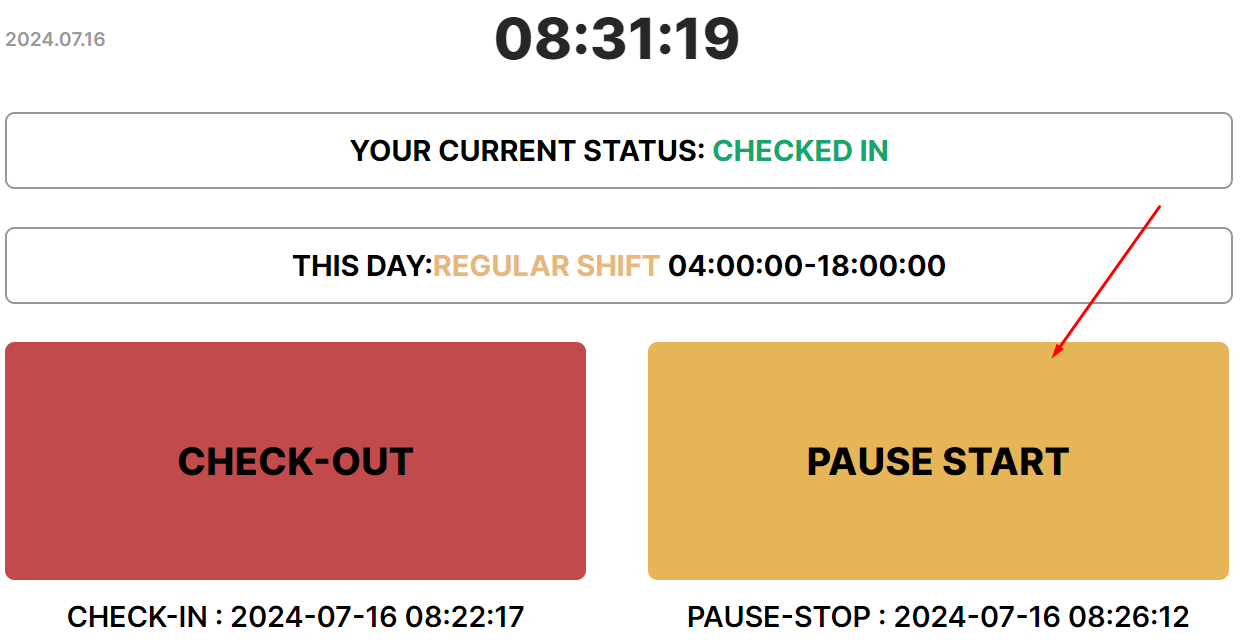
- Enter a comment if you wish or leave the field blank and press “Ok”.
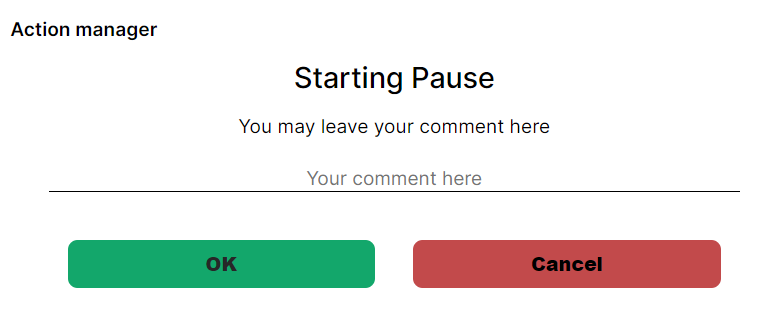
- The status will change to “On pause”.
Marking the end of break during work time
Press the “Pause stop” button to mark the end of a pause
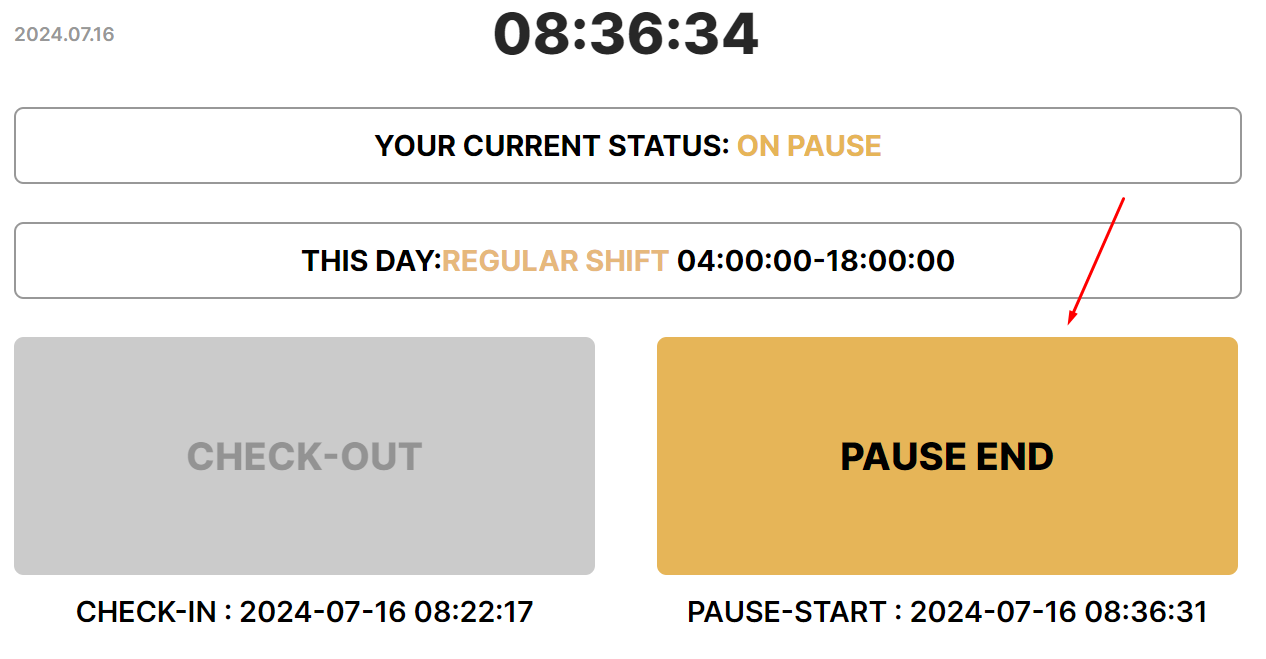
- Enter a comment or leave the field blank and press “Ok”.
- The status will change to Checked in.